
How to Schedule a Recurring Job
A recurring job by definition is one that keeps on going, week after week, and month after month, and year after year. So let's go ahead and schedule a recurring job:
Insert Job Information:
- Go to any customer profile and click on the "Schedule Job" subtab.
- Choose a date by clicking on the desired day in the mini calendar.
- Set the appointment time and duration if applicable.
- Under the date, select an item from the job type dropdown list.
- Enter the price in the "each" field, and it will auto-populate in the price field.
- Choose an assignment in the "Assigned To" dropdown if there is an employee assigned to the job.
Enable Recurring Job:
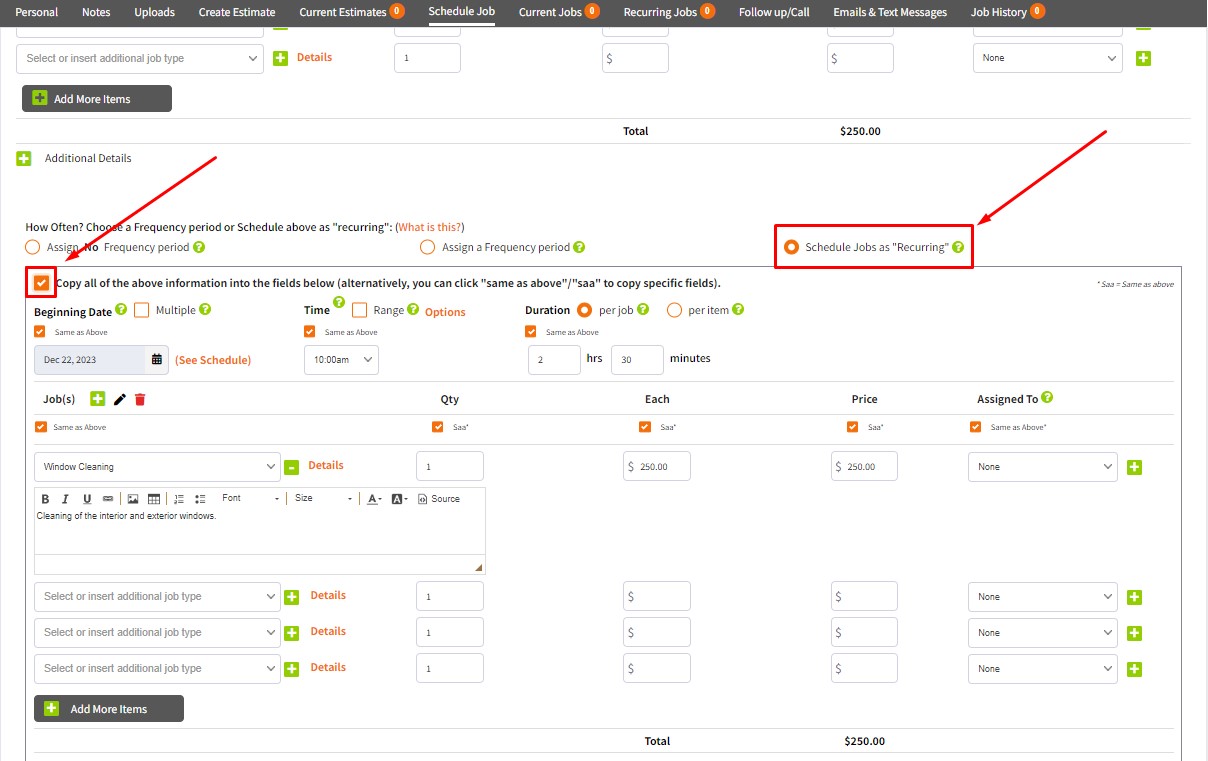
- At the bottom right of the scheduling area, locate the "Schedule Jobs as Recurring" option.
- Tick the "Copy all of the above.." option to copy all the details you just inserted.
Select Recurring Period:
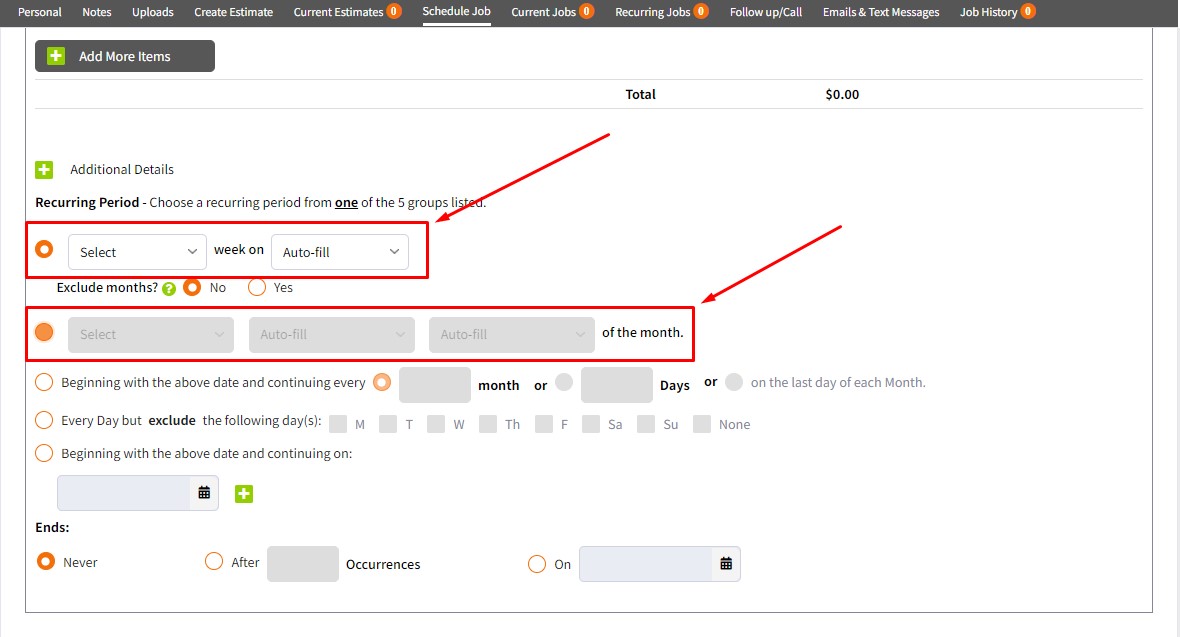
- Scroll down a bit more to the recurring options and choose from five recurring period choices:
- The primary options are the first two selections. The first option pertains to weeks (every week, every other week, etc.), while the second option pertains to months (first Monday of the month, second Tuesday of the quarter, etc.).
Exclude Months (Optional):
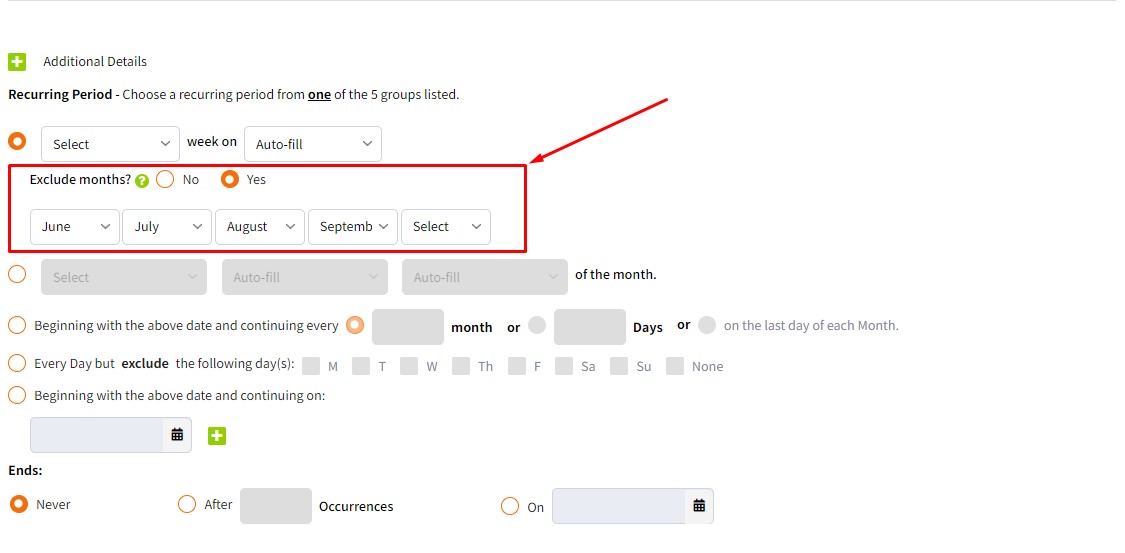
- You also have the flexibility to exclude particular months, which is beneficial for landscapers during slower periods or for those offering recurring services to snowbirds. For instance, you might provide services for 7 months and exclude them for 5 months.
Save Recurring Job:
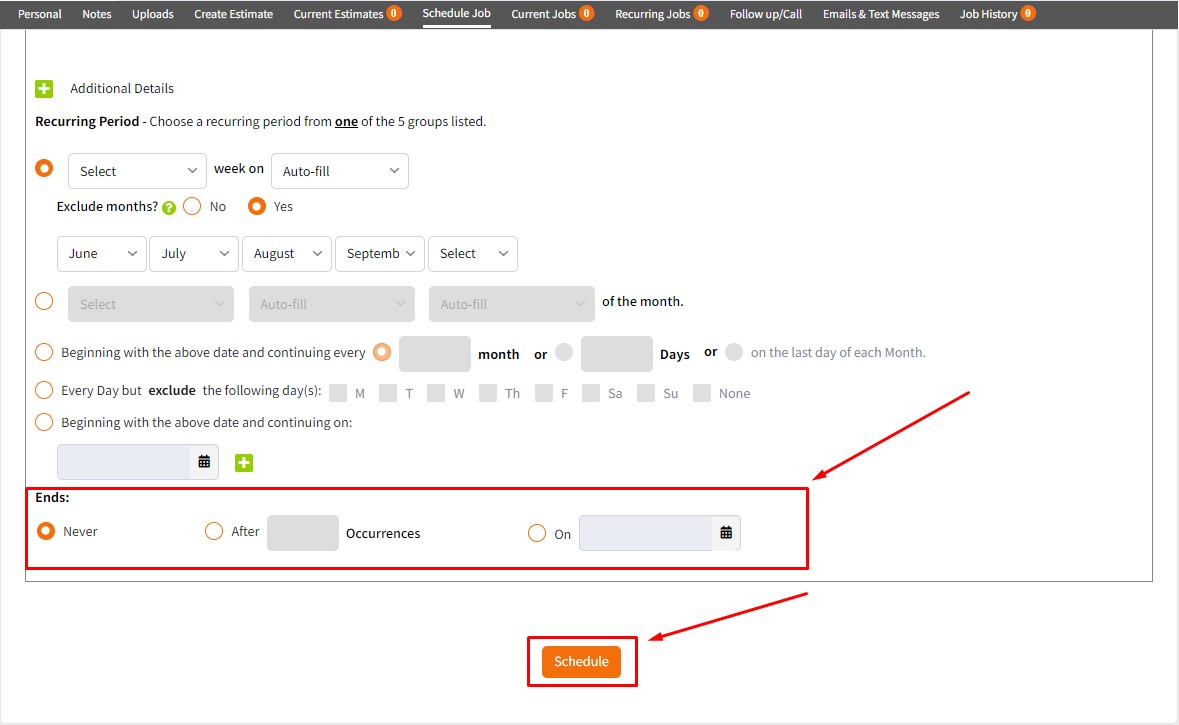
- Further down, you'll encounter an "Ends" area. In most cases, you'll leave it as the default setting, which is "Never".
- Lasty, click the "Schedule" button and your recurring job has just been scheduled forever!
If you have any further questions or need assistance, feel free to reach out to our support team.
