
Invoice Deposits
Adding a deposit amount to an invoice is a simple and convenient feature available in The Customer Factor. Whether you’re creating a new invoice or updating an existing one, you can easily include a deposit to collect partial payments upfront.
If you already have an invoice created and need to add a deposit amount, follow these steps:
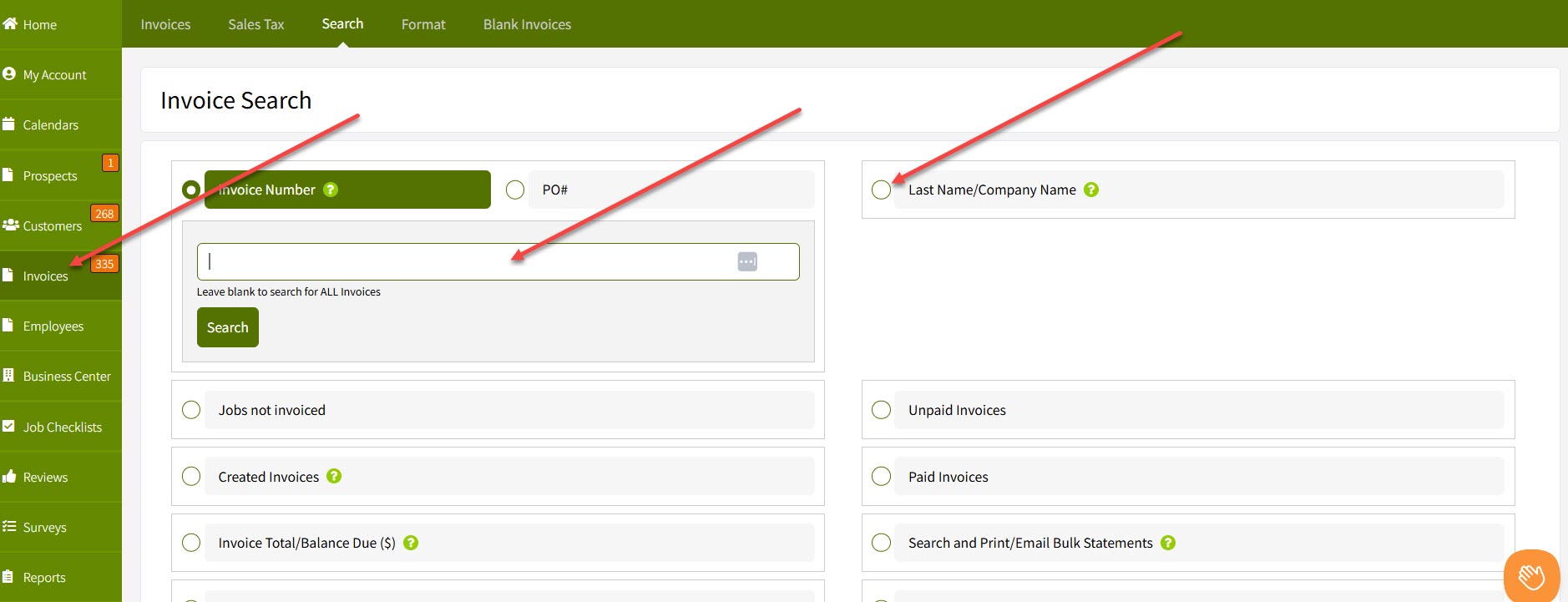
- Go to the “Invoices” tab.
- Use the Search box at the far right to quickly locate an invoice by typing the Customer’s Last Name or Company Name, then click “Search.”
- Alternatively, you can use the Search options on the page to customize your search based on specific criteria.
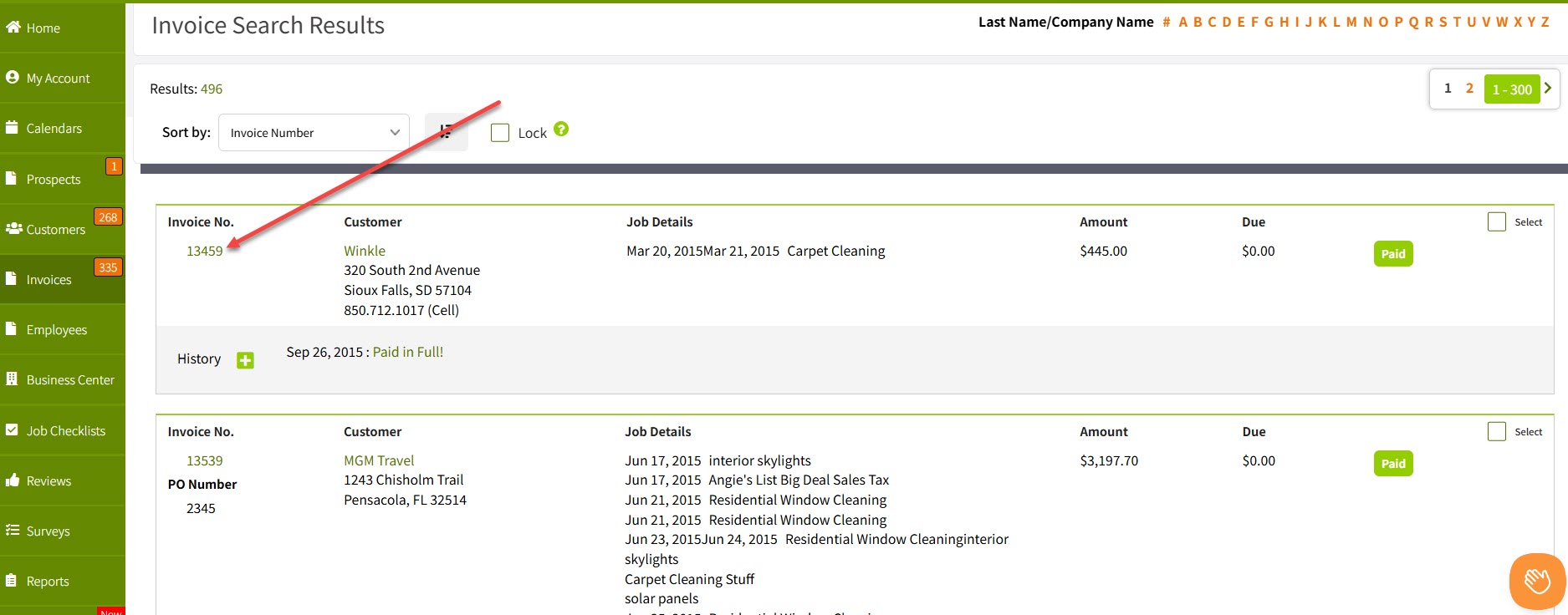
- All the invoices will then display in the "Search results screen" based on your search criteria. And you can go ahead and click the invoice/invoices number:
Once you are on the invoice screen:
- Look toward the bottom right corner of the page, where you’ll find the “Deposit” field.
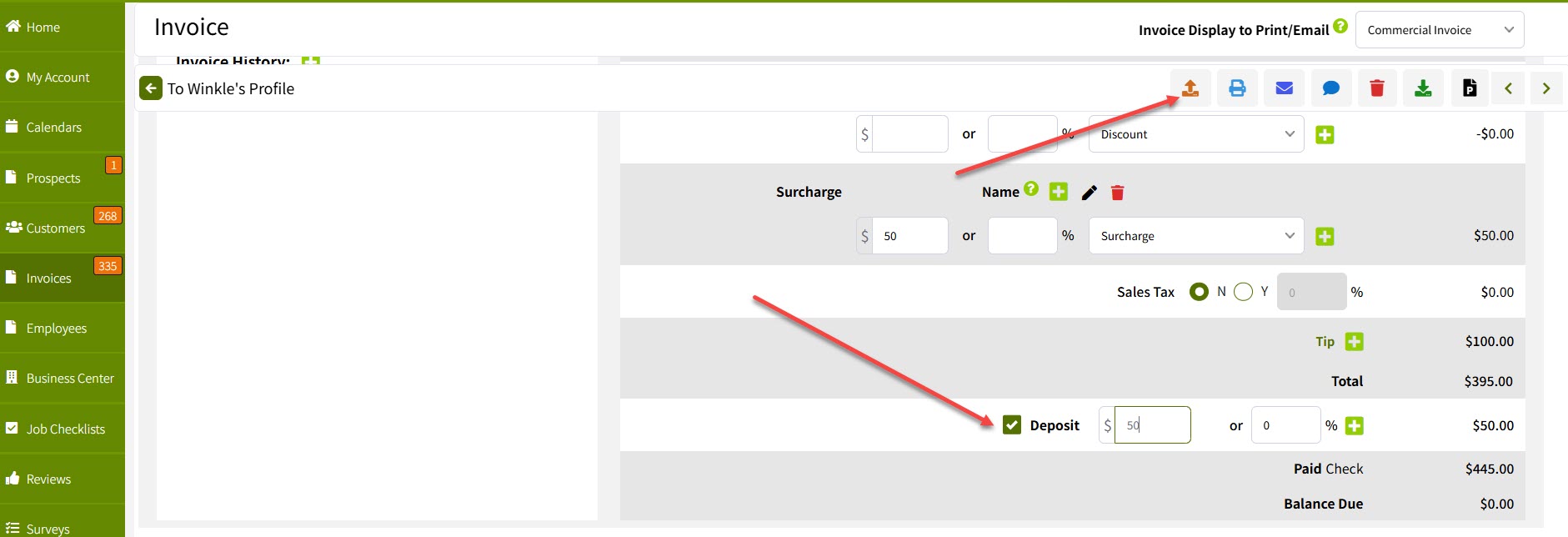
You can enter the deposit as either a dollar amount or a percentage of the total invoice.
For example:
- Enter
$50if you require a flat deposit. - Enter
25%if you want to collect a quarter of the total amount upfront.
After entering the deposit, be sure to click the “Update” button at the top of the page to save your changes.
Once your invoice is updated, you can email it directly to your customer. The deposit amount will appear on the invoice, allowing the customer to pay the deposit due easily.
That’s it! You’ve successfully added a deposit to your invoice in The Customer Factor. This feature helps ensure partial payment collection and streamlines your billing process.
Best regards,
